
Quick Summary
- Android does not provide the same battery-health percentage on every smartphone.
- Some phones offer built-in battery health information through Settings.
- Samsung Galaxy users can check battery information through Samsung Members.
- Pixel and other Android phones may provide battery details through device diagnostics or settings.
- Third-party apps can provide additional battery information, but their readings may be estimates.
How to Check Battery Health on Android Phones
Battery health is an important factor when checking the condition of an Android smartphone. As a battery ages, its capacity can gradually decrease, which may result in shorter battery life and more frequent charging.
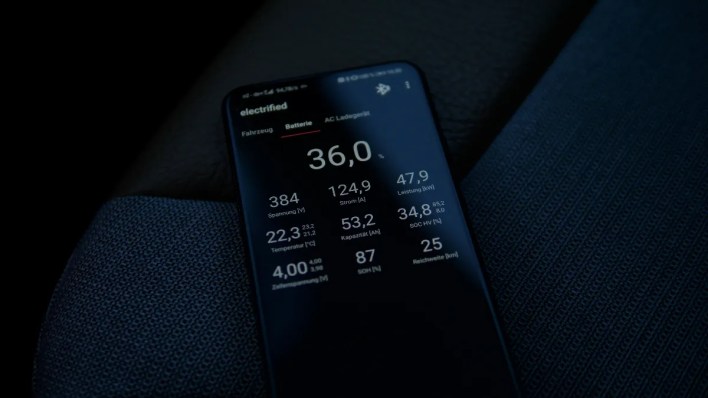
Unlike iPhones, Android phones do not have one universal battery-health menu that works across every manufacturer. The exact method depends on the phone brand, Android version and software interface.
If you want to check your phone’s battery condition, there are several methods you can try.
Method 1: Check Battery Health From Android Settings
Some newer Android smartphones provide battery-health information directly through the Settings app.


The exact menu can vary between manufacturers, but you can generally check:
- Open Settings on your Android phone.
- Tap Battery.
- Look for options such as Battery Health, Battery Information or Battery Diagnostics.
- If available, open the battery-health section.
- Check the displayed battery condition, maximum capacity or related information.
If you do not see a Battery Health option, your smartphone may not provide this information directly through the standard Android settings.
ALSO READ iPhone 15 Price Drops to ₹51,299 on Flipkart With Bank Offer
Method 2: Check Battery Information on Samsung Galaxy Phones
Samsung Galaxy phones provide battery diagnostic tools through the Samsung Members application.
To check your battery condition:
- Open the Samsung Members app.
- Tap Support.
- Select Phone diagnostics or the available diagnostics option.
- Choose Battery status.
- Review the battery information displayed by the diagnostic tool.
The available options can vary depending on the Galaxy model and software version.
Method 3: Use Your Phone’s Built-in Diagnostics
Some Android manufacturers include hardware diagnostic tools that can test the battery and other components.
To find these options:
- Open Settings.
- Search for Diagnostics, Device Care, Device Diagnostics or Hardware Diagnostics.
- Open the relevant option if it is available.
- Select the battery test or battery information section.
- Follow the on-screen instructions.
This method is particularly useful because the diagnostic tool is designed specifically for the phone’s hardware and software.
Method 4: Check Battery Usage in Settings
Even if your Android phone does not show a battery-health percentage, the Battery settings can provide useful information about battery performance.
Go to:
Settings → Battery
Depending on your device, you may be able to see:
- Battery usage by apps
- Screen-on time
- Battery consumption
- Charging information
- Estimated remaining battery life
- Apps using excessive power
A sudden increase in battery drain can indicate that an app, background process or software issue is affecting battery life. It does not necessarily mean that the battery itself has degraded.
Method 5: Use a Battery Monitoring App
If your phone does not provide built-in battery-health information, you can use a reputable battery monitoring application from the Google Play Store.
These apps may estimate information such as:
- Battery capacity
- Charging speed
- Battery temperature
- Charging current
- Battery wear
- Estimated battery health
However, these readings should be treated as estimates rather than exact measurements. The application may need several charging cycles before producing a more useful estimate.
Avoid installing unknown battery apps that request unnecessary permissions or claim to dramatically improve battery health.
How to Know If Your Android Battery Is Degraded
A battery-health percentage is useful, but everyday behaviour can also provide clues.
You may notice battery degradation if your phone:
- Loses charge much faster than it used to
- Requires charging several times a day
- Shuts down unexpectedly despite showing battery remaining
- Becomes unusually warm during normal use or charging
- Shows significantly reduced battery life after relatively light usage
- Takes longer than usual to charge
These symptoms can also be caused by software problems, demanding applications, poor network coverage or high screen brightness. Therefore, battery drain alone does not confirm that the battery needs replacement.
What Battery Health Percentage Is Considered Good?
There is no single Android-wide standard for interpreting battery-health percentages because manufacturers use different measurement methods.
As a general indication, a battery with capacity close to its original rated capacity is in better condition than one that has experienced substantial capacity loss.
If your phone shows a significantly reduced maximum capacity and you are also experiencing noticeably shorter battery life, it may be worth contacting the manufacturer’s authorised service centre for a battery assessment.
How to Make Your Android Battery Last Longer
You can reduce battery wear and improve everyday battery life with a few simple habits.
Avoid Excessive Heat
High temperatures can negatively affect lithium-ion batteries. Avoid leaving your phone in direct sunlight or hot environments for extended periods.
Use a Compatible Charger
Use the charger and cable recommended or certified for your smartphone. Avoid poor-quality chargers and cables from unknown sources.
Keep Your Phone Updated
Software updates can sometimes improve power management and fix battery-draining bugs. Install updates from your phone manufacturer when they are available.
Check Battery-Draining Apps
Open the Battery section in Settings and check which applications are consuming the most power. Restrict or uninstall apps that are unnecessarily using battery in the background.
Use Battery Saver When Necessary
Battery Saver or similar power-saving modes can reduce background activity and help extend battery life when you are running low on charge.
Does Charging to 100% Damage an Android Battery?
Modern Android smartphones use lithium-ion or lithium-polymer battery technology and include charging-management systems designed to control charging.
Keeping the phone at very high charge levels for extended periods can contribute to battery ageing over time, particularly when combined with heat.
Some smartphones therefore include features such as adaptive charging or battery protection that can help manage charging behaviour.
If your phone has such a feature, enabling it can be useful for people who regularly leave their device connected to a charger for long periods.
When Should You Replace an Android Battery?
Consider getting the battery checked by an authorised service centre if the phone has developed significantly reduced battery life, unexpected shutdowns or other battery-related problems.
Battery replacement should be performed by a qualified technician, particularly on smartphones with sealed batteries.
If the battery is swollen, damaged or unusually hot, stop using the device and seek professional service rather than attempting to open or replace it yourself.
Frequently Asked Questions
How can I check battery health on an Android phone?
Open Settings → Battery and look for a Battery Health, Battery Information or Diagnostics option. The exact location depends on the phone manufacturer and Android version.
Does every Android phone show battery health percentage?
No. Android does not provide a universal battery-health percentage across all smartphones. Availability depends on the manufacturer, model and software version.
How can I check Samsung phone battery health?
Samsung Galaxy users can use the Samsung Members app and its phone diagnostic tools to check the battery status.
Can an app accurately measure Android battery health?
Battery monitoring apps can provide useful estimates, but their battery-health readings are not always exact. Built-in manufacturer diagnostics are preferable when available.
Why is my Android phone battery draining quickly?
Fast battery drain can be caused by battery ageing, demanding apps, high screen brightness, poor network conditions, background activity or software issues.
How can I improve Android battery life?
Reducing screen brightness, checking battery-draining apps, using Battery Saver when needed, avoiding excessive heat and keeping the phone updated can help improve everyday battery life.
When should I replace my Android battery?
If your phone has significantly reduced battery life, unexpected shutdowns or other battery problems, consider having the battery assessed by an authorised service centre.
Conclusion
Checking battery health on Android is not as straightforward as on some other smartphone platforms because manufacturers use different menus and diagnostic tools. Start with the Battery section in Settings and check whether your phone provides a dedicated battery-health or diagnostic option.
If that information is unavailable, manufacturer diagnostics or reputable battery-monitoring tools can provide additional information. More importantly, pay attention to changes in battery life, charging behaviour and device temperature to determine whether the battery may need professional inspection.
For the latest technology news, AI developments, smartphone launches, telecom updates, Windows guides, Android tips, and detailed how-to articles, follow TopTrendingTech.com. We publish verified technology news, practical tutorials, and unbiased analysis to help readers stay informed.